
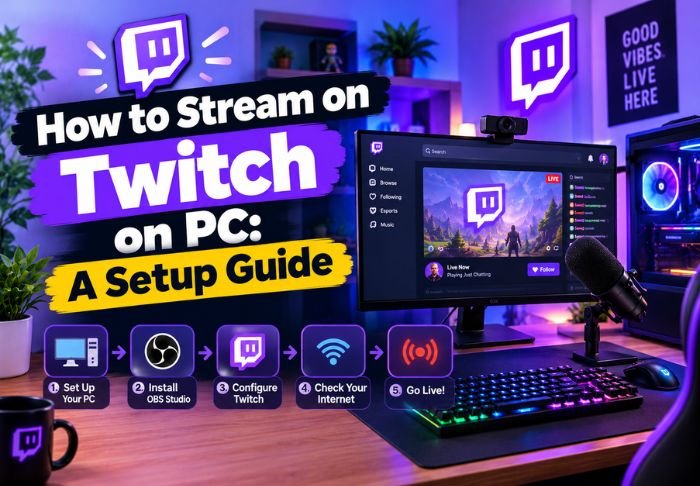
Twitch Stream on PC provides more control and better performance than mobile streaming, but the setup can be a little daunting. The process involves configuring software rather than complex processes.
- Software such as OBS or Streamlabs is used for PC streaming
- Higher end hardware improves stream quality more than on mobile
- Configuring the streaming software properly can eliminate lag, dropped frames, and other issues
Once the settings are proper, PC streaming is smoother and better than using other hardware for streaming. For other setup guides like these, TwitchTV has information beyond the daily Twitch.
What PC Specs Do You Need to Stream Comfortably?
Streaming places an additional load on your computer beyond running a game. It has to encode and upload the video. A mid-range PC can handle it, though weaker systems may have problems running more demanding games.
Adequate specs to stream comfortably include: Twitch Stream on PC
- A quad core or better CPU
- 16GB of RAM
- A dedicated GPU if using hardware encoding
- At least 5 Mbps of stable upload
If a game and stream combination is too much for your PC, lowering output resolution or using hardware encoding may help more than other upgrades.
What Streaming Software Works Best on PC?: Twitch Stream on PC
OBS Studio is by far the most popular choice for PC streaming. It’s free, offers a ton of customization, and gives you full control of all aspects of the software.
More PC options include:
- Streamlabs: An easier-to-use version of OBS
- XSplit: A paid streaming software that includes built-in features
Users often start with Streamlabs because of its simpler setup, and switch to OBS later for more control over their stream.
How Do You Configure Settings for Smooth Streaming?
Settings are one of the most important things to configure for optimal streaming. Most streaming software has defaults for new users, and they aren’t always the best settings for your computer or your internet connection. Getting these settings right can eliminate common problems like lag or frame drops.
Some key settings to change:
- Output resolution: 1080p takes up the most space and causes lag for many computers. 720p is a safer bet for most computers.
- Bitrate: Good streaming quality requires a bitrate between 3000 and 6000 kbps. This is mostly dependent on your connection, and going higher can cause dropped frames.
- Encoder: For PCs with a good graphics card, using an NVENC encoder can take the load off the CPU, and improve quality.
Running a test stream can help identify issues with your configuration before your stream goes live.
How Do You Connect Your PC Setup to Twitch?
The last part of the process is easy. You just need to add your stream key, found in your Twitch Creator Dashboard, into your streaming software. After that, you’re ready to stream!
The essential steps to streaming: Twitch Stream on PC
- Copy your Stream Key from the Twitch Dashboard
- Paste it in Stream Settings in your streaming software
- Select Twitch if prompted
- Click “Start Streaming”
The Stream Key connects your software to your channel like a password and should always be kept private.
Common Twitch Stream on PC Issues
PC streaming is not without its pitfalls even if your hardware is sufficient. Many issues that pop up are more minor, although frustrating, problems that are not indicative of a large problem with your hardware.
Issues include: Twitch Stream on PC
- Dropped frames from an inconsistent upload speed
- Audio/video synchronization (AV sync) issues
- Game Lag from high CPU usage
- Brower source errors causing overlays and alerts not to show up correctly
Use OBS’s built-in Stats to catch these issues during a stream to resolve them before the stream is finished.
Conclusion: Twitch Stream on PC
Configuring your streaming software to work with your hardware is the most difficult part of streaming on Twitch and once that is done you mainly have to adjust your settings for the best connection quality. The main focus shifts from the technological aspect of streaming to building an audience. Our guides cater to beginners and cover many of the same topics, so be sure to check us out at TwitchTV.
FAQs: Twitch Stream on PC
Q: Is a Capture Card required to stream PC games?
No, streaming PC games does not require a Capture Card. A Capture Card is only required if you are streaming Console games through your PC.
Q: Can older PCs handle Twitch streaming?
Yes, but the hardware may not be able to handle the highest settings, and will require lower resolutions or bitrates.
Q: Is a wired Internet connection better than Wi-Fi for streaming?
Yes, wired connections are always better, less prone to dropped frames and more stable.
Q: Are two monitors required to Twitch stream on PC?
While it is not required, it makes it easier to manage the stream and chat, while still being able to play the game, etc.
Q: Is it possible to stream multiple games?
Yes, you can stream multiple games as long as you don’t have to reset your software each time.
Also Read: How to Make Money on Twitch: A Realistic Breakdown

Leave a Reply